Export a transcript, summary or audio from Limemo
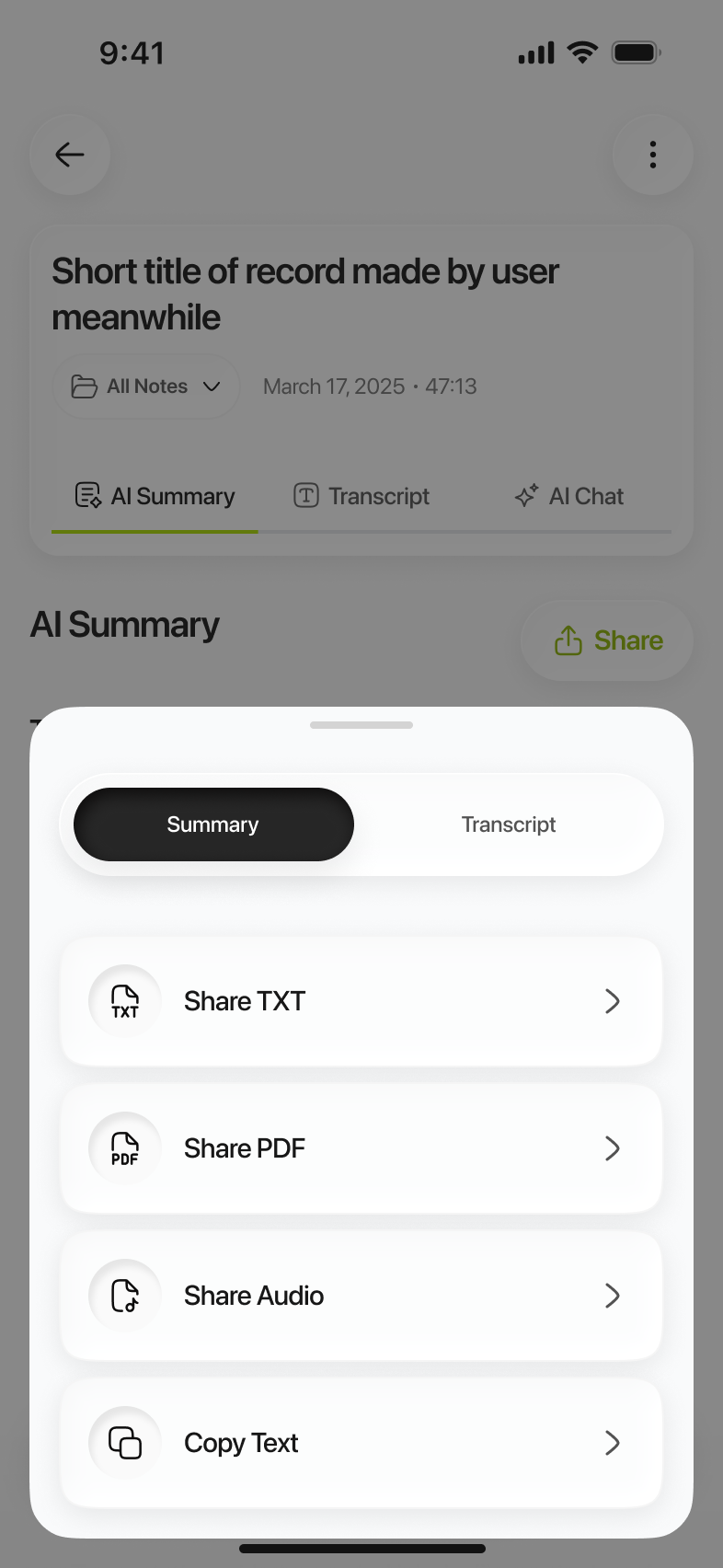
The export sheet offers PDF, TXT, Copy Text and the audio file, with a Summary / Transcript switch at the top so you choose which half of the note leaves.
The one thing to get right: the sheet asks you which half of the note you mean. At the top of it sits a Summary / Transcript switch. It opens on whichever you were looking at, and you can change it there before you pick a format — so you never have to leave the sheet to fix it.
- Open the note.
- Tap the share button. The export sheet opens straight away.
- Check the Summary / Transcript switch at the top and set it to the half you want.
- Pick Share PDF, Share TXT, Share Audio or Copy Text. Share Audio ignores the switch — it always gives you the recording.
- For the first three, the iOS share sheet opens. Send the file to Mail, Slack, Teams, Notion, Files or anything else on your phone that accepts it — Limemo hands the file to iOS and iOS does the rest.
The same options live in the three-dots menu under Share & Export, and that menu has one more for a note you imported as a PDF: Export Original PDF gives you back the source file, not a generated one.
What each export contains
| Export | What you get |
|---|---|
| Share PDF | The half you picked on the switch, laid out as it looks in the app |
| Share TXT | The same content as plain text, for pasting somewhere else |
| Copy Text | The same content, straight to the clipboard |
| Share Audio | The recording itself, as the audio file |
| Export Original PDF | The PDF you imported, unchanged — three-dots menu, PDF notes only |
There is no DOCX, no subtitle file and no timestamped format. If you need the words inside another document, TXT is the one to take.
If that didn’t work
- There are no export options. The note has not been analysed yet, so there is nothing to export but the audio. Tap Analyze Recording, Analyze Video or Analyze File — whichever the note offers — and the formats appear once it finishes.
- You exported the wrong thing. The switch at the top of the sheet was on the other half. Tap the other segment and pick the format again.
- The other app refuses the file. Some apps accept PDF but not TXT, or the reverse. Save it to Files first, then attach it from there.
- A long recording takes a while to share. The audio file is the recording at full length; give it a moment before deciding it failed.
Can I export just the summary?
Yes — set the switch to Summary and Share PDF or Share TXT gives you the summary alone, without the transcript underneath it. If it is not worded the way you want it to go out, fix it before exporting: the summary is editable, and the export takes whatever you saved.
One exception worth knowing. On a note you imported as a PDF, export from the AI Summary tab: the document tab counts as the transcript half, and a PDF note has no spoken segments to put in one.
Still need help?
Write to us and we will take it from there. Contact · support@orvanta.limited