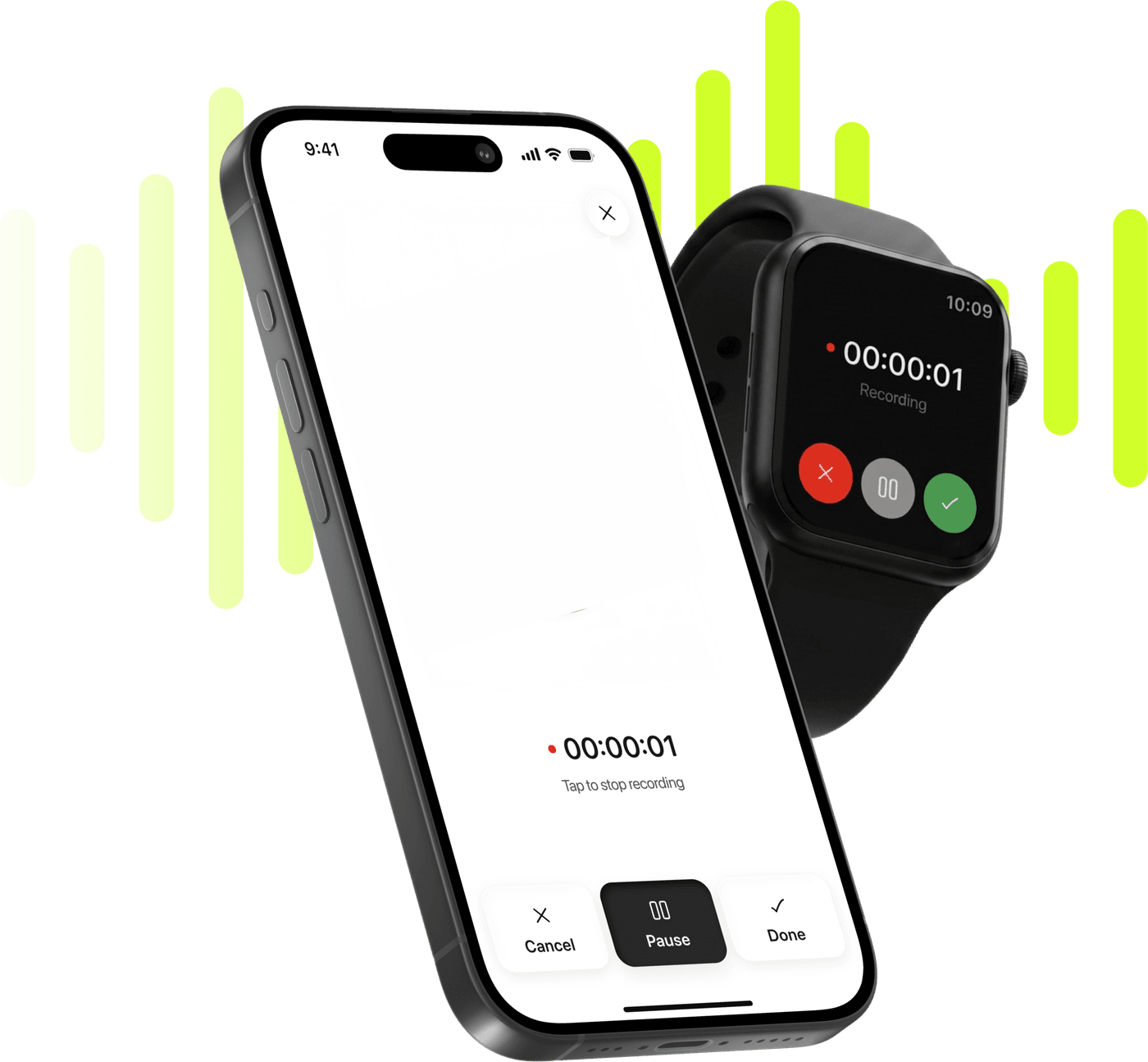
Record on your phone, read it back as a transcript with speaker labels
Press record and put the phone down. When you stop, the recording becomes a note: the transcript, each voice marked separately, and a summary in the format you picked.
Start taking smarter notes today
Record, transcribe and summarize on iPhone and Apple Watch.
An interruption pauses a recording, it does not end it
A call or another app closes the current segment and pauses; recording picks up again when the microphone is free, sometimes after a tap. A full disk ends a recording of ten seconds or more with a save.
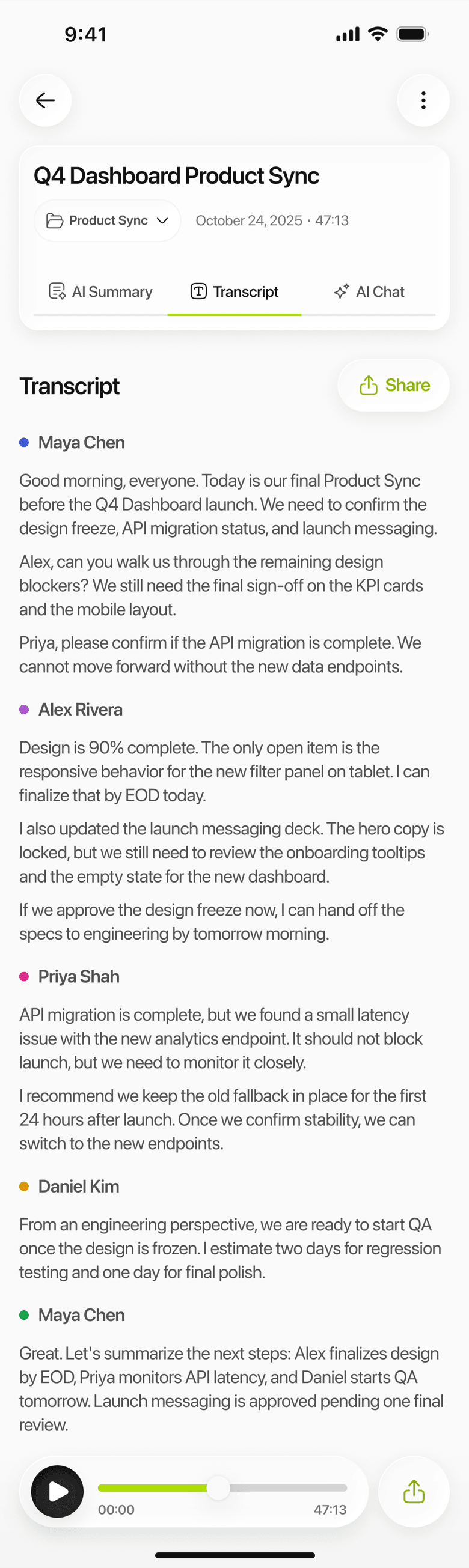
The transcript separates the voices
A conversation comes back as text with each speaker marked, not as one block. Identifying speakers is a step every recording passes through, so a meeting across a table reads as a meeting.
Rename the speakers, edit the summary
Speaker 1 becomes a person's name, once per note. The summary is editable too, and can be restored to the original — so what you send on reads the way you would have written it.
The summary is in the format you choose
Brief, Executive, Key KPIs, Memo, Standard, Study or Custom — or your own written instructions when none of the seven is what you meant.
Your wrist can start it too
A recording made on Apple Watch arrives as the same kind of note, with the same speaker labels and the same choice of summary, once it reaches your iPhone.
From record to transcript in four steps
1
Tap record
From the app, from a Home Screen widget, or from the Lock Screen widget — all three open Limemo on the same recording screen.
2
Stop, and the note is created
Anything past ten seconds saves. A shorter one pauses instead and tells you so, rather than filing a note with nothing in it.
3
Watch it work, or walk away
The note moves through five steps: the file is processed, transcribed, the speakers identified, the key points highlighted, and it finishes up. From Transcribing onward you can leave the screen.
4
Pick a summary, or ask about it
Choose one of the seven formats, translate the summary, or ask the AI a question about what was said.
What happens to a recording
The recording is made on your phone and stays there while you are making it. Voice recording
transcription is not done on the device: when you stop, the audio goes to our servers to be
transcribed, and the recording is kept both on the device and on the servers — encrypted in transit
and at rest, and deletable at any time. Two copies, in other words,
and both of them yours to delete. How Limemo handles your recordings has the detail.
A note passes through five visible steps rather than a spinner: the file is processed, then
transcribed, then the speakers are identified, then the key points are highlighted, then it
finishes up. The first step covers both saving the recording locally and getting it to the server,
which is why it is the slowest — and going back during it asks whether you want to stop processing.
From the second step onward the screen tells you it is safe to leave, and the back button simply
works.
“Speaker labels” means the transcript is split by voice, not that Limemo knows who anyone is. Every
recording goes through that step, and the transcript arrives as Speaker 1 and Speaker 2; naming
them is your job, and one you only have to do once per note.
A recording is never lost. An interruption pauses it and it picks up again, sometimes after a tap;
a full disk ends a recording of ten seconds or more with a save; a failed upload leaves the
recording on the main screen to try again.
What ends a recording is the space left on your phone. A three-hour lecture is the same job as a three-minute thought:
the recorder watches the free space on your phone while it runs, and if the disk gets low it ends the
recording with a save. The plan you are on does not change that.
Fixing the transcript
Three things about a finished note can be changed, and one deliberately cannot.
Rename the speakers first. Speaker 1 and Speaker 2 tell you where the voices change, but a
transcript reading “Speaker 2 will send the contract” is not something you can forward to anyone.
Rename them once and the whole note reads as a conversation between people — and the names apply to
the whole transcript.
The summary is editable, and so is the note’s title. Rewrite a summary that missed your point, add
your own notes underneath it, or ask for a different format entirely — and if the edit turns out
worse than what you started with, the original can be restored.
The transcript itself does not change. It is written once, when the recording is analysed, and
never rewritten afterwards. The transcript is the record of what was actually said, and a record you
can quietly rewrite is not much of a record. It is also why the audio stays alongside it — when the text and your memory disagree, the
recording is there to settle it.
A recorder that stops at the audio file leaves the work to you. What makes a voice recording
transcription app different is that the recording is the input and the text is the output — the
reason to record and transcribe in one place rather than two.
And that is the whole job: turning a voice recording into text you can read, correct where it
matters, and hand to somebody else. Everything above is in service of that one step.
The transcript a 47-minute meeting becomes, with each speaker separated.
Frequently asked questions
Can I record with the screen locked or the app in the background?
Yes to both. Recording keeps running when you switch apps or lock the phone, and while the recording screen is open the phone will not auto-lock on you at all. If a call or another app takes the microphone, the recorder closes the current segment and pauses rather than ending; when it is released, recording resumes — and if the app was in the background you get a notification that it paused, provided you had already allowed notifications.
How long can one recording be?
As long as the session lasts. Anything under ten seconds is not saved — the app pauses and says so instead. Above that, no plan and no tier puts a clock on a recording: the recorder watches the free space on your phone while it runs and, if the disk drops below its floor, ends the recording with a save rather than losing it. Free space is what ends a long session, not a limit we set.
Which languages can it transcribe?
99+, and the summary can be translated separately from the transcript. The supported languages page in the help center has the current list, and what happens when two languages turn up in one recording.
Can I record on my Apple Watch and get the same transcript?
Yes. A watch recording transfers to your paired iPhone and is transcribed the same way from there, so it arrives as the same kind of note — same speaker labels, same choice of summary. The Apple Watch feature page covers what happens on the wrist and what waits for the phone.
Can I use a recording I already have instead of making a new one?
Yes. Importing an audio file you already have is a different job with its own feature page; this one is about recordings you make in the app.