Rename speakers and fix the summary
Three things about a finished note can be changed — the speaker names, the summary and the title. The transcript itself is written once and stays as it is, on purpose.
Rename the speakers
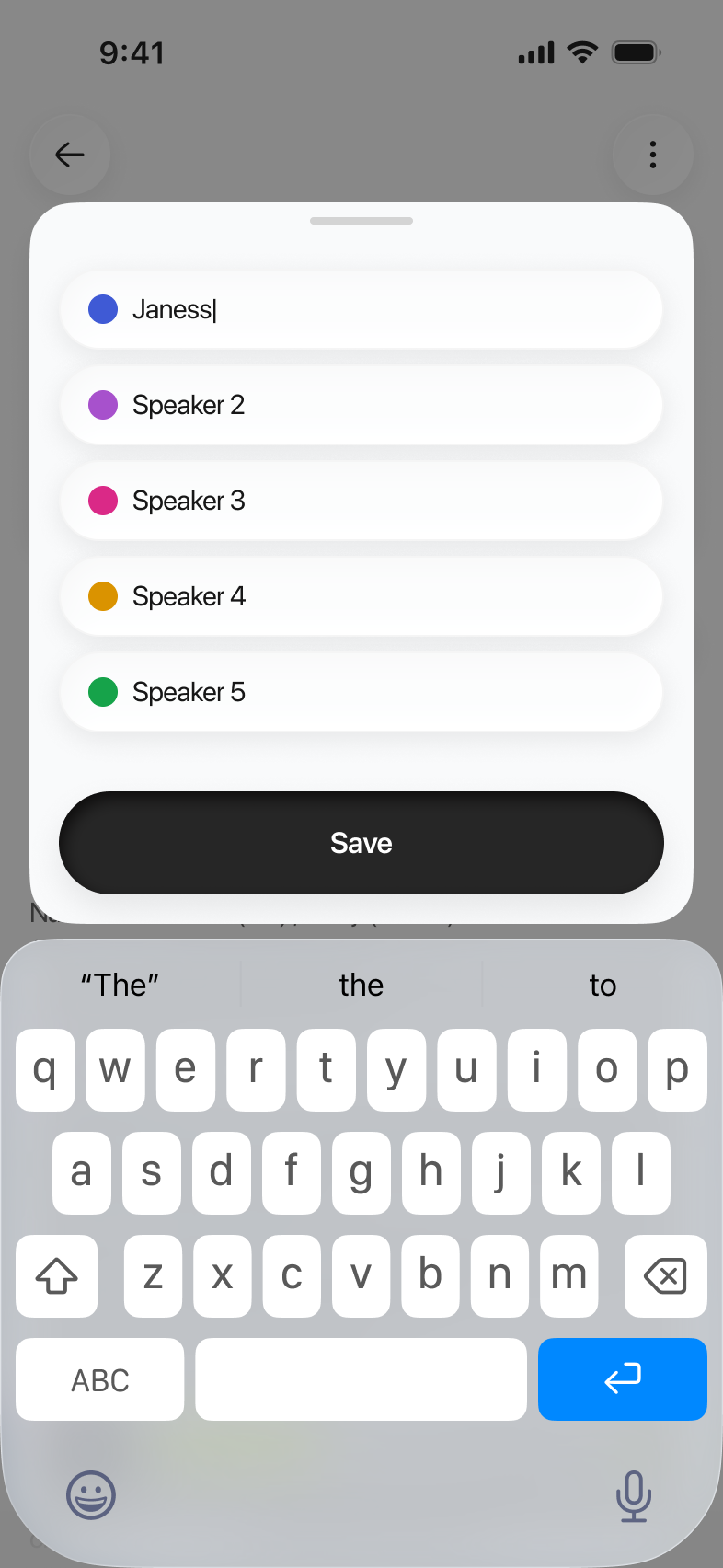
- Open the note, tap the three-dots menu and choose Edit Speakers.
- Replace Speaker 1, Speaker 2 and so on with the real names.
- Save. Every segment of that voice takes the name at once — it is one rename per person, not one per line, and the names apply to the whole transcript.
Edit Speakers appears on notes with audio you recorded or uploaded, once the speakers have been identified. A note made from a PDF does not offer it.
Edit the summary
- Open the summary, tap the three-dots menu and choose Edit Summary.
- Rewrite what you want, add your own notes underneath it, or delete a section that does not matter.
- Save. The note now carries your version, and an export takes what you saved.
- Changed your mind? Undo Edits brings back the summary Limemo generated, in its original language. It shows up in the same menu once a summary has been edited.
The note’s title is editable the same way, through Rename in that menu.
What the transcript does not do
The transcript cannot be edited, and that is a decision rather than a missing feature. It is written once, when the recording is analysed, and it stays that way. A transcript you can quietly rewrite is not a record of what was said — and the recording stays alongside it precisely so that when the text and your memory disagree, you can listen and settle it.
So if a word came out wrong, the fix is to correct it in the summary, which is the part you send on, and to keep the audio as the reference for the part you quote.
If that didn’t work
- The note is still processing. Speaker names arrive at the Identifying speakers step. Before that there is nothing to rename.
- Two people came back as one speaker. There is no way to split or merge speakers in the app today. Rename the one you have to something honest — “Panel”, or the name of whoever talks most — and quote from the audio for anything that matters.
- Your edit has not appeared on another device. An edited summary saves to the servers and then syncs. Open the note again on the other device; if it still shows the old text, tell us.
Does renaming a speaker or fixing the summary change anything else?
Renaming a speaker changes only the names. Editing the summary changes only the summary — the transcript underneath it stays exactly as it was, and so does the recording. Nothing you edit rewrites the record of what was said, which is the whole idea.
If the summary is not the kind you wanted rather than merely worded badly, a different format is a better move than editing: pick another one and Limemo writes a new summary from the same transcript. Exporting then takes whichever version you saved.
Still need help?
Write to us and we will take it from there. Contact · support@orvanta.limited