
The spoken words, split by speaker
A recorded meeting or a lecture comes back as text with each voice marked separately, and you rename Speaker 1 to a person's name once per note.
Video to text
Pick the video in Files and Limemo transcribes what is said in it. The note comes back with the transcript split by speaker and a summary in the format you choose.
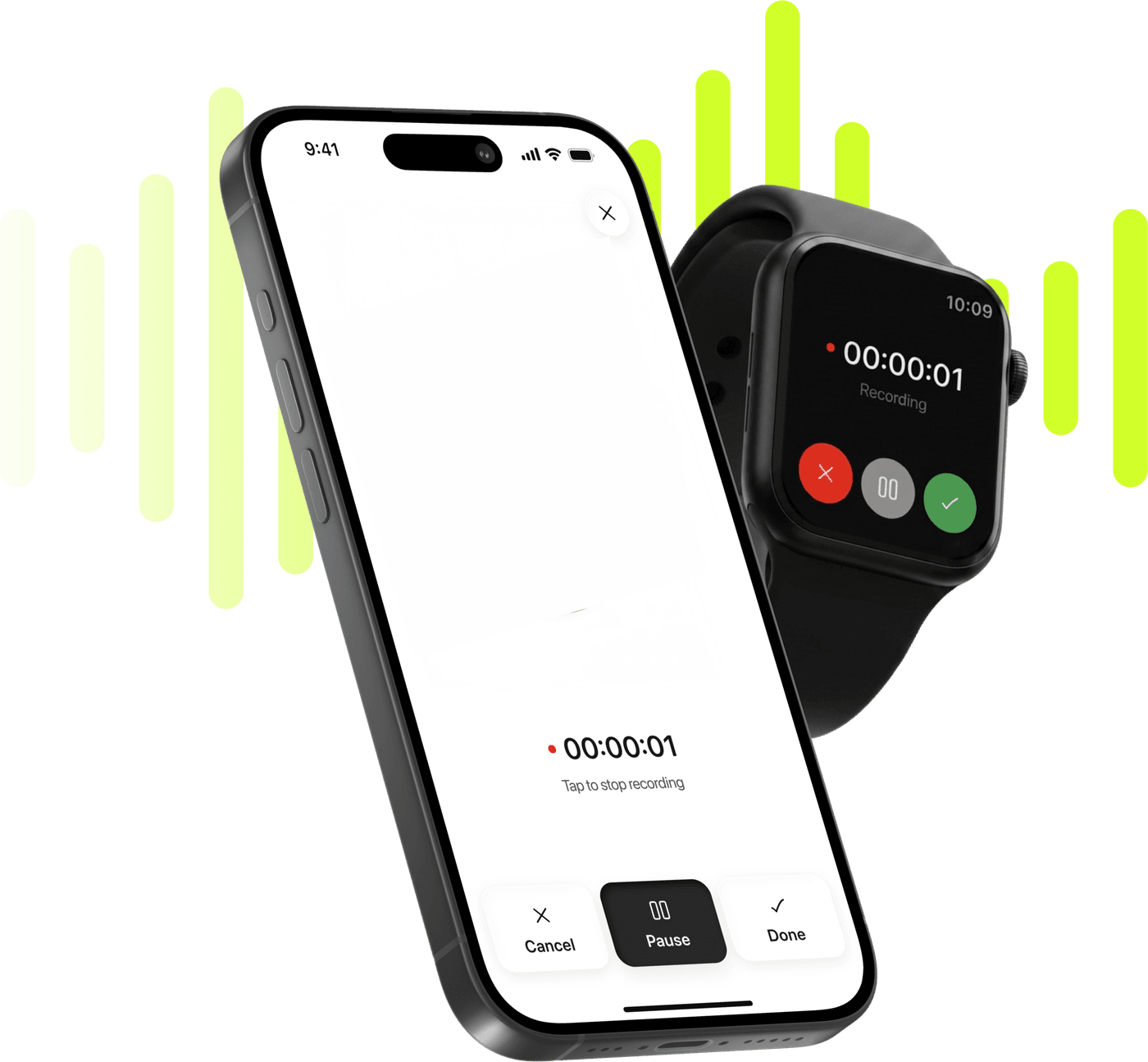
Record, transcribe and summarize on iPhone and Apple Watch.
Free to try. Cancel anytime. *
A recorded meeting or a lecture comes back as text with each voice marked separately, and you rename Speaker 1 to a person's name once per note.
Brief, Executive, Key KPIs, Memo, Standard, Study or Custom — or your own written instructions when none of the seven is what you meant.
Once the note exists you can ask the AI about what was said in it, which beats scrubbing a timeline looking for the part you half-remember.
The summary can be translated separately from the transcript, so a recording in one language can be read in another without touching the original words.
Limemo imports through the system file picker, so the video needs to be somewhere Files can reach — on the phone, in iCloud Drive, or in another drive that appears in Files.
The video goes up whole and the audio is separated on our side, so a long recording takes as long as the upload does. Worth being on Wi-Fi for a big one.
The note arrives with the words split by speaker. Choose a summary format, translate it, or ask the AI about the recording.
Only the speech. Limemo transcribes the audio track, so a recorded lecture, meeting or interview comes back as what was actually said, split by speaker. Anything that exists only as text on a slide was never spoken, so it is not in the transcript.
Eight video types go in — mp4, mov, avi, mkv, webm, wmv, flv and m4v — and the same button takes audio files and PDFs, so you are not choosing an import route per file type. If something you expected is greyed out in the picker, your version of iOS has no handler for that extension; converting it to mp4 or mov clears it. An audio file rather than a video is the other page’s job: transcribe an audio file you already have.
The video has to be in Files — on the phone, in iCloud Drive, or in another cloud drive that shows up there. A video in your camera roll is saved to Files first: Limemo installs no share extension and reaches nothing in Photos on its own, so a file moves because you moved it.
One thing to plan for with a big file: the video is uploaded whole. It is not shrunk or stripped down on the phone first — the file goes up as it is and the audio is separated on our side. A five-minute clip is instant. A two-hour screen recording takes as long as two hours of video takes to leave a phone, and the note appears when that finishes.
Recorded calls and recorded lectures are what most people bring here, and they work the ordinary way: a Zoom, Teams or Meet recording is a video file, and once it is in Files it imports like any other. Limemo records the room you are in rather than joining a call, and works on the recording afterwards — so the export your platform already saved is all it needs.
What both want from AI video transcription is not the video back but who said what. Going from mp4 to transcript, split by speaker with a summary on top, is one import — so if you need to convert video to text and the words are the point, that is the whole flow. If the meeting has not happened yet and it will be in the room with you, recording and transcribing on iPhone skips the upload and gets you the same note; recording lectures on iPhone is that same job from the other end, where the recording is made rather than downloaded. Either way you end up with mp4 to text, or audio to text, in a note you can search.
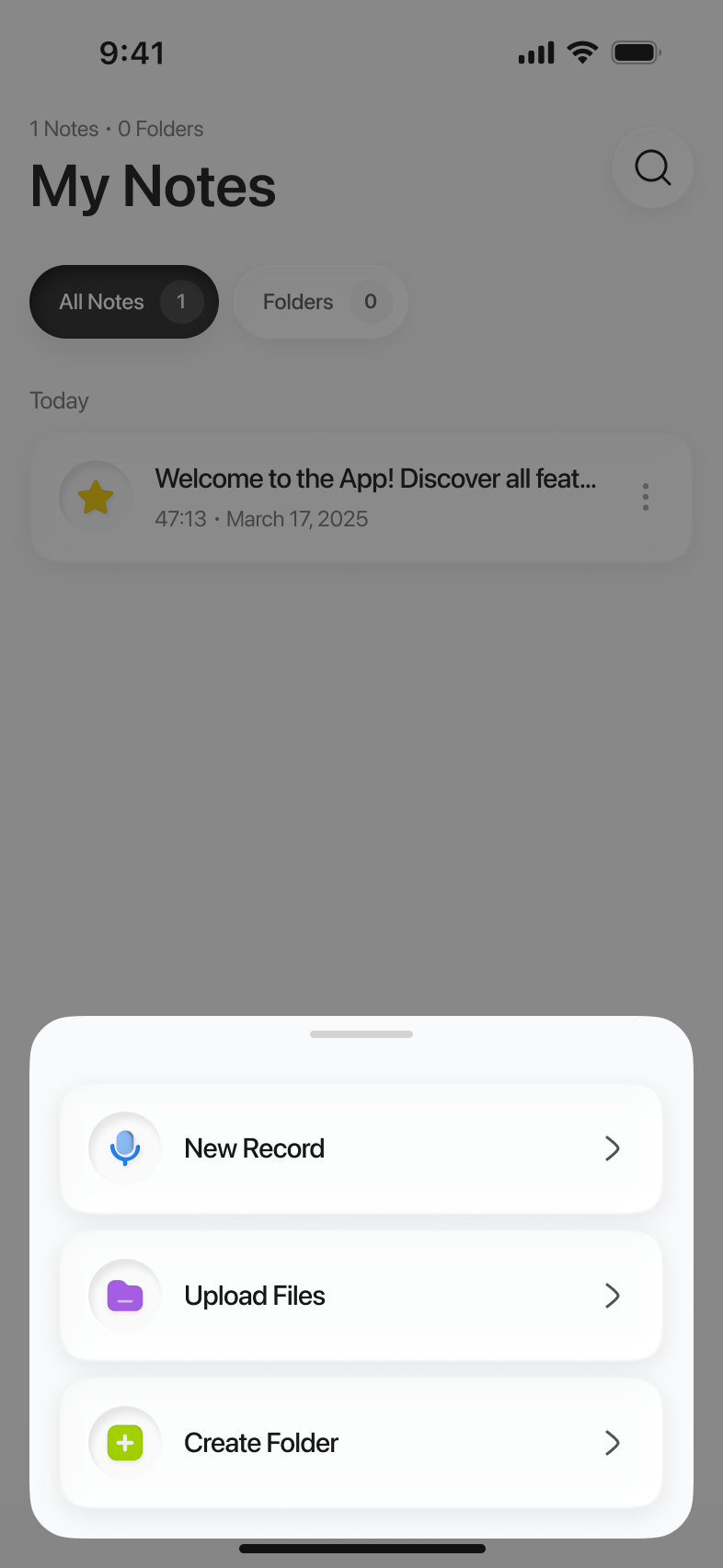
Eight video types: mp4, mov, avi, mkv, webm, wmv, flv and m4v. The same picker also takes audio files and PDFs, so mp4 transcription and an m4a voice memo go in through the same button. If a file you expect to work is greyed out, iOS has no handler for that extension on your version — converting it to mp4 or mov first is the fix.
No. Only what is said is transcribed. Nothing written on screen reaches the transcript — not a slide, not a caption, not a chart label — so if a detail matters, it has to be spoken aloud.
Yes, as a file. Save the recording out of Zoom, Teams or Meet, put it in Files, and import it like any other video. Limemo works on the recording afterwards — it records the room you are in rather than joining a call, and has no meeting bot.
What sets the pace is the upload: the video is sent whole, so a two-hour screen recording takes as long as two hours of video takes to upload from a phone.