
A transcript that separates the voices
An interview or a two-person conversation comes back split by speaker rather than as one block, and you rename Speaker 1 to a person's name once per note.
Audio to text
You already have the recording. Pick it from Files and it becomes a note: the transcript split by speaker, a summary in the format you choose, and the audio still there underneath.
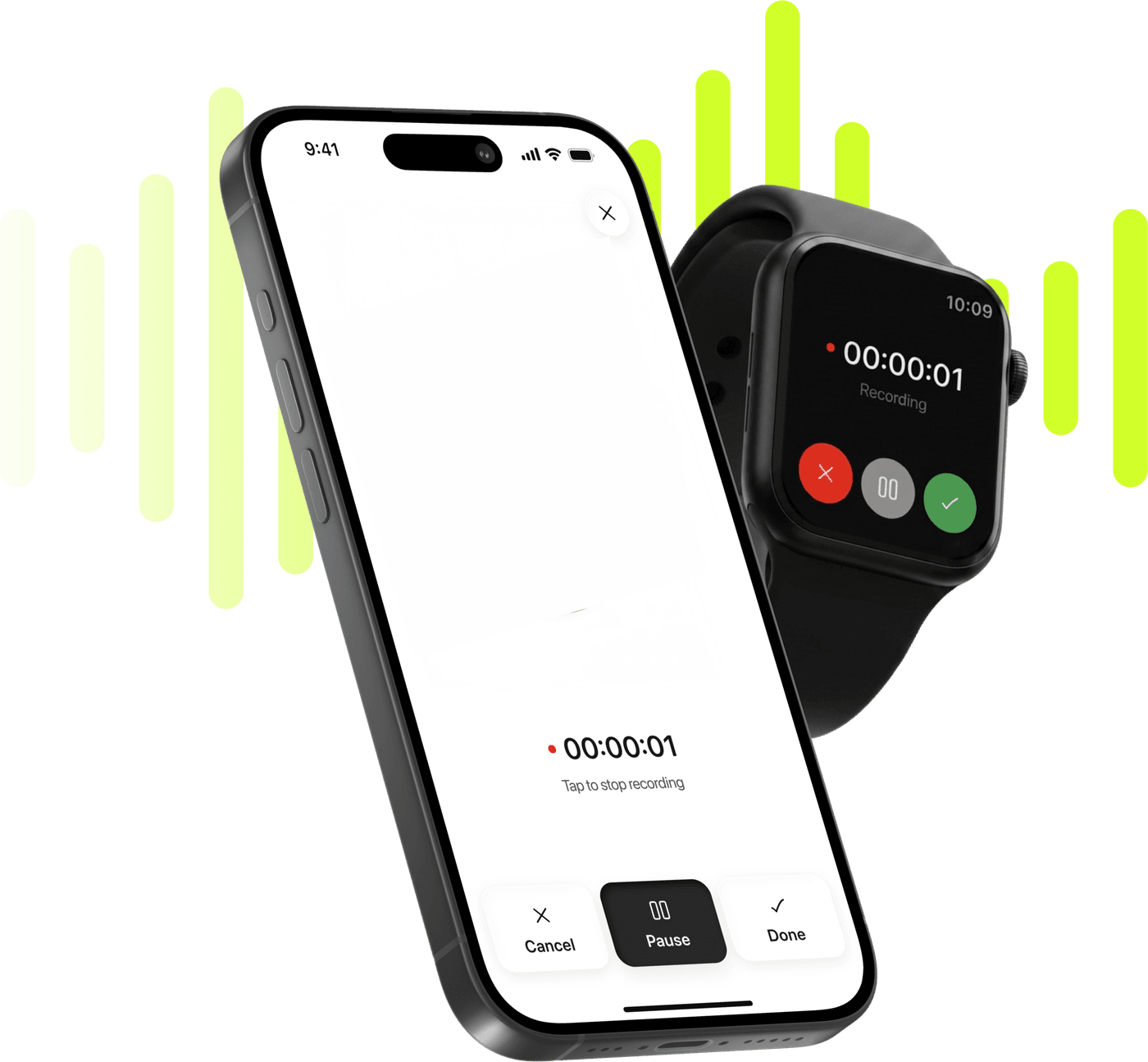
Record, transcribe and summarize on iPhone and Apple Watch.
Free to try. Cancel anytime. *
An interview or a two-person conversation comes back split by speaker rather than as one block, and you rename Speaker 1 to a person's name once per note.
Brief, Executive, Key KPIs, Memo, Standard, Study or Custom — or your own written instructions when none of the seven is what you meant.
Once the note exists you can ask the AI about what is in it, which is usually faster than scrolling a transcript looking for the part you half-remember.
The summary can be translated separately from the transcript, so a recording in one language can be read in another without touching the original text.
The file you imported is kept alongside its transcript, so when the text and your memory disagree you can go back to the recording instead of guessing.
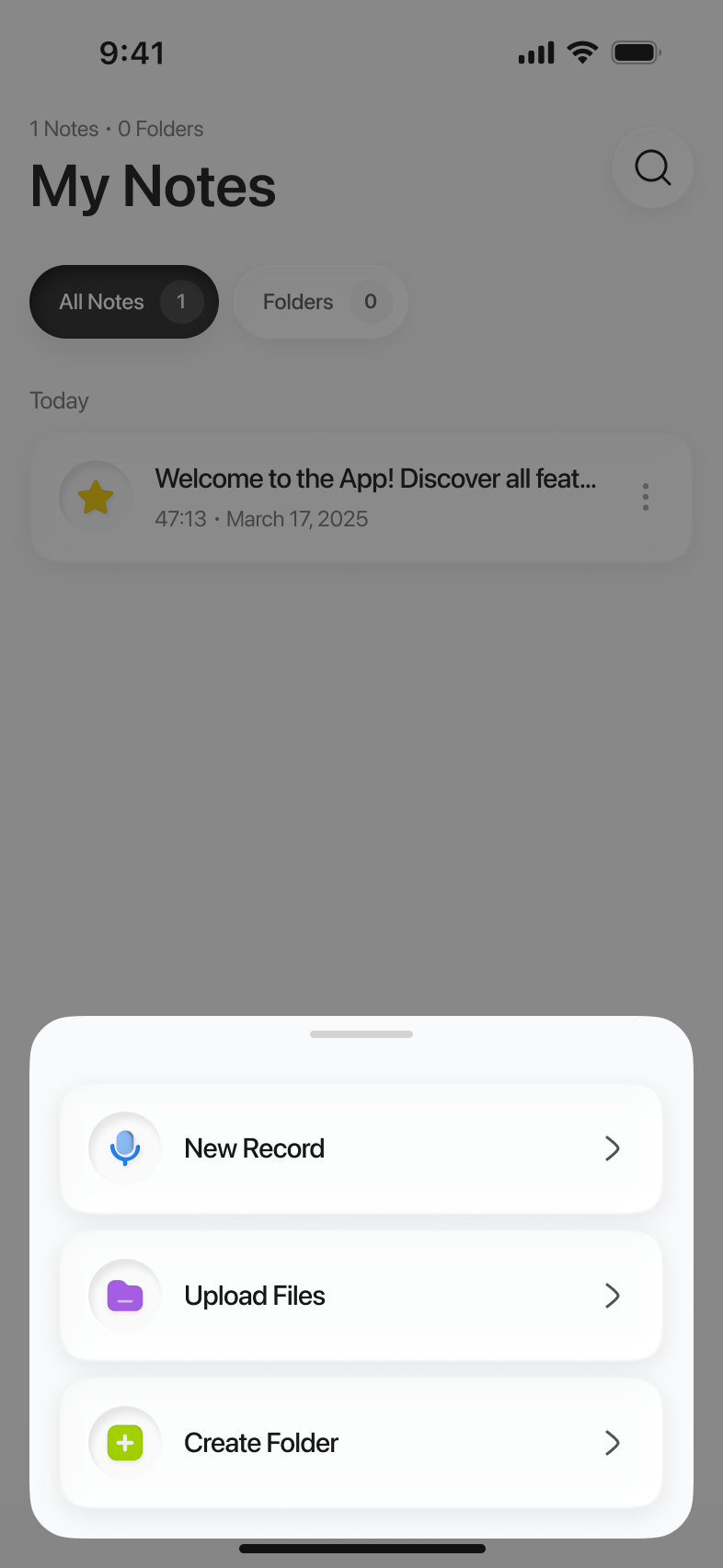
Limemo imports through the system file picker, so the audio needs to be in Files or a cloud drive Files can reach. Export it once from whichever app it lives in.
Tap import in Limemo, choose the file, and it starts processing. Nothing is read from another app on its own — the file only moves because you picked it.
The note arrives with the transcript split by speaker. Choose a summary format, translate it, or ask the AI about the recording.
Limemo does not keep a list of file extensions it likes. It asks iOS for audio files and takes what the system hands back, which means the formats you already have almost certainly work: m4a from Voice Memos and from Limemo’s own recordings, mp3 from a dictaphone or a download, wav from an interview rig. The practical test is the file picker itself — if a file is selectable, it is a format Limemo will accept, and if it is greyed out, iOS is not treating it as audio.
Where the file comes from matters more than what it is called. Limemo imports through the system picker, so the audio has to be somewhere Files can reach: on the phone, in iCloud Drive, or in another cloud drive that shows up in Files. Anything you can see in Files, you can import. Anything you cannot, export once first — from Voice Memos, from a messaging app, from a recorder that keeps its own library.
That one export step is the privacy model doing its job: Limemo installs no share extension, so nothing is read out of another app on its own. A file moves because you picked it, and Limemo never goes looking through your other apps’ storage.
Video files are imported the same way and handled on their own page — mp4, mov, avi, mkv, webm, wmv, flv and m4v are all accepted, and the transcript comes from the audio track.
Pick the file and the note is building before you have put the phone down: the words split by voice, a summary in the format you chose, and the original audio still sitting under it. The one thing worth planning for with a long recording is the upload — the file is sent whole, so a three-hour interview takes as long as three hours of audio takes to upload from a phone, and a two-minute memo is up in a moment.
Two situations account for most imports. The first is a voice memo that has been sitting on the phone for weeks — recorded in a hurry, never listened back to, and useless as audio because finding the one sentence in it means playing the whole thing. Converting that audio to text is what makes it searchable at all.
The second is an interview. An interview recording is the case where speaker labels stop being a nicety: a transcript that does not mark who is talking has to be read with the audio running alongside it, which defeats the point of having a transcript. Split by speaker, with the names filled in once, it becomes a document you can quote from.
Both start the same way — a file you already have, picked from Files — and the difference is only which summary format you take afterwards.
Whatever iOS itself recognises as audio. Limemo asks the system file picker for audio files rather than checking a list of its own, so the usual m4a, mp3 and wav are all in scope, and so is anything else your iPhone already treats as an audio file. If a file is greyed out in the picker, iOS is not classifying it as audio — converting it to m4a or mp3 first is the fix.
Yes. A Voice Memos recording is an m4a, the same format Limemo's own recordings use. Export it from Voice Memos to Files, then pick it in Limemo — Limemo installs no share extension, so nothing leaves another app until you choose it.
The practical limit is the upload: the file is sent whole, so a three-hour interview takes as long as three hours of audio takes to upload from a phone, while a two-minute memo is up before you have put the phone down. Wi-Fi is worth it for a long one.
Yes. The imported file is stored with the note and stays there for as long as the note does; deleting the note takes the audio, the transcript and the summary out of your account together. The data retention page in the help center covers how long that is on our side.
Yes — recording on your iPhone or Apple Watch is a different job with its own feature page; this one is for audio you already have.