
PDF — the document you forward
The summary or the transcript, laid out with a title and the date it was created, and speaker names in bold where the transcript has them.
Share and export
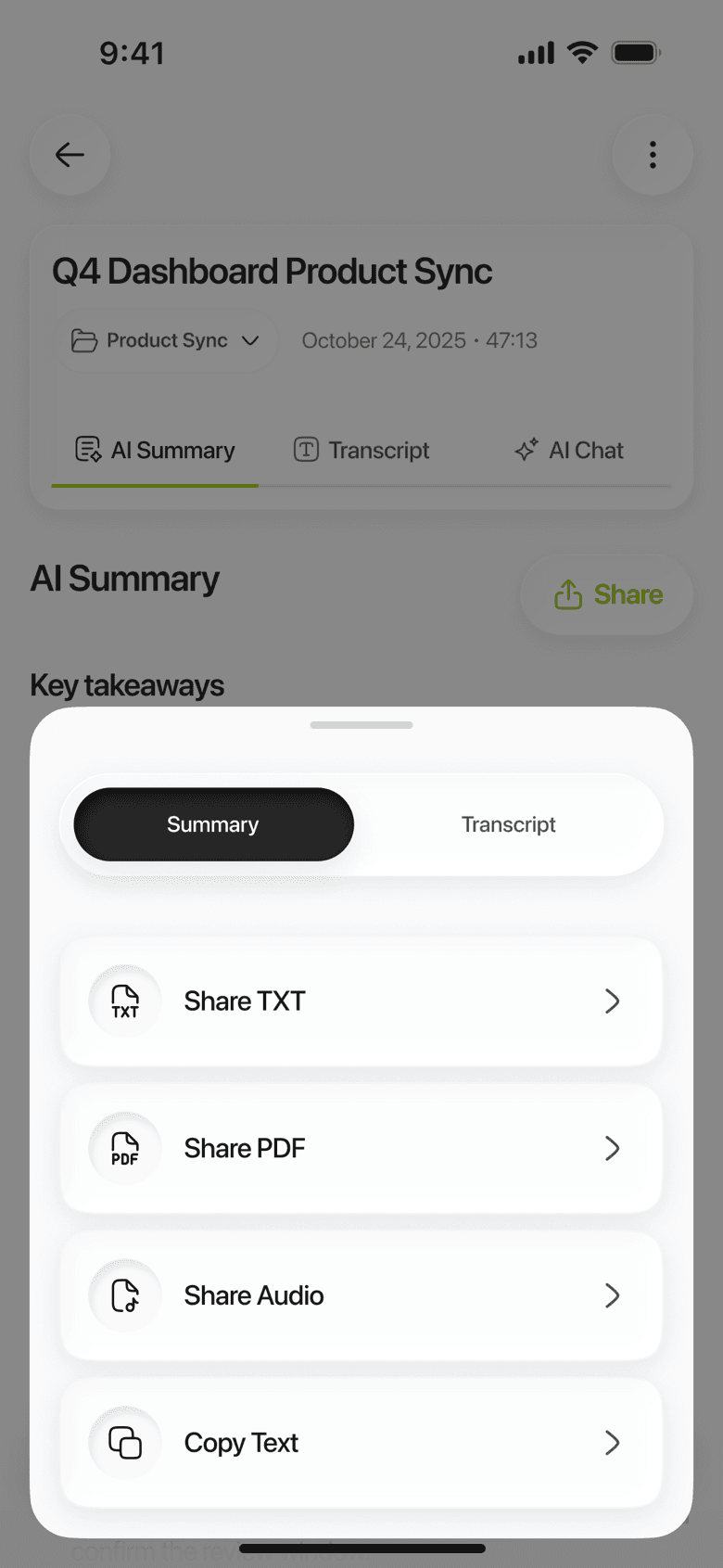
Pick which half of the note you mean, pick a format, and iOS does the delivery — to Mail, Slack, Teams, Notion, Files or anything else on your phone that accepts a file.
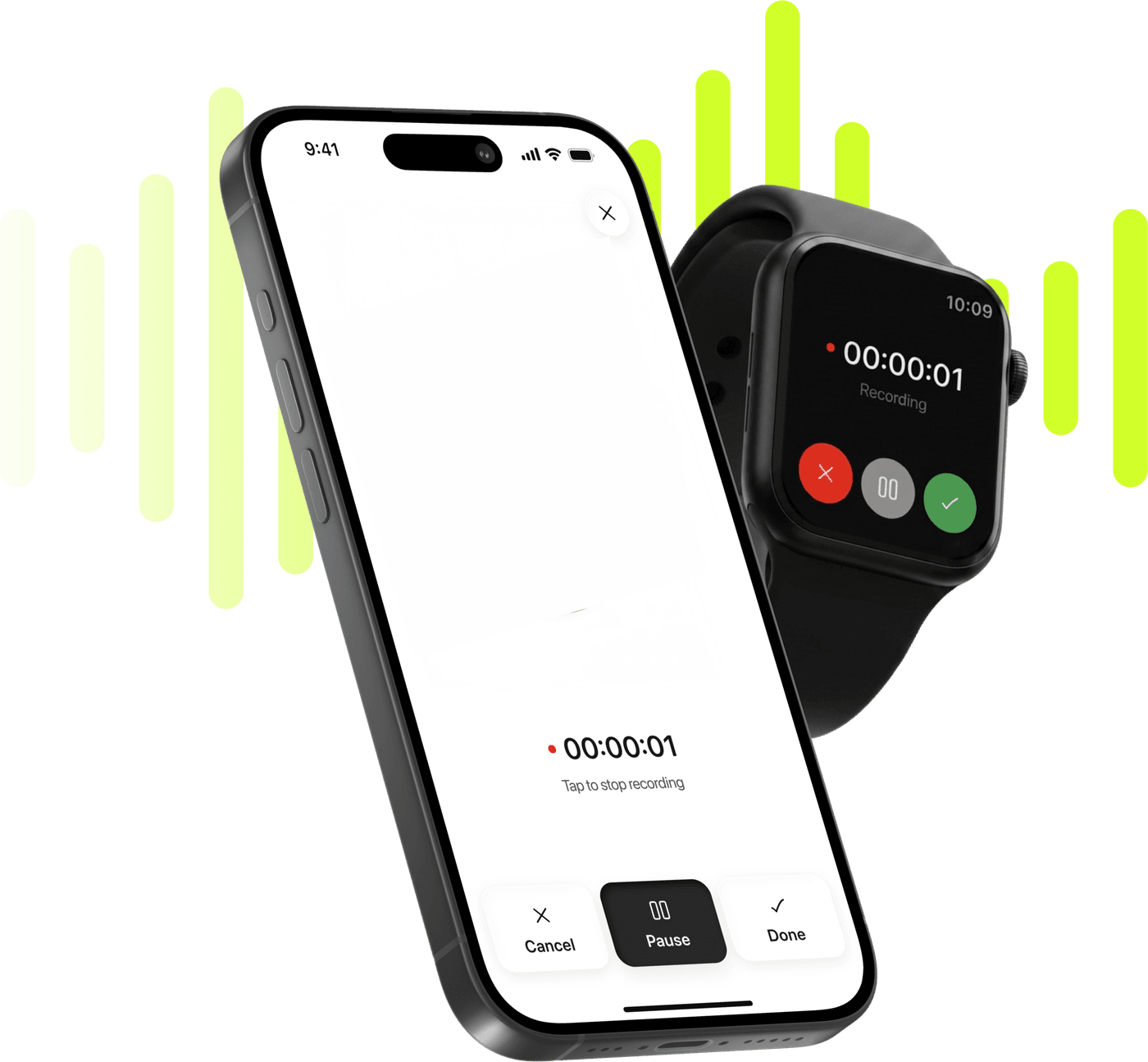
Record, transcribe and summarize on iPhone and Apple Watch.
Free to try. Cancel anytime. *
The summary or the transcript, laid out with a title and the date it was created, and speaker names in bold where the transcript has them.
The same content without formatting, for dropping into a doc, a ticket or a message. Speaker names sit on their own line above what they said.
When the destination is a text field rather than a file. No share sheet, no attachment, no title line — just the text, ready to paste.
Share Audio hands over the recording itself, whichever half of the note you happened to be looking at.
Any note that has been analysed. Before that there is nothing to export but the audio.
The sheet opens with a Summary / Transcript switch at the top. It starts on whichever you were reading, and you can change it right there.
PDF, TXT, the audio, or Copy Text. For PDF, TXT and the audio the iOS share sheet opens and you pick the app — PDF and audio travel as files, TXT as text; Copy Text puts the text on the clipboard.
Limemo makes a file and hands it to iOS. There is nothing to connect and nothing to set up.
That is the opposite of what most apps ask for: connect your Slack, authorise your Notion, and the app posts on your behalf. Limemo uses the iOS share sheet instead, which already knows every app on your phone. If an app takes a PDF, it is in the list.
The practical difference is small in use and large in trust. You choose the destination every time, nothing is connected to anything, and there is no permission to revoke later.
Every analysed note holds two documents — the transcript and the summary — and an export is always one of them, never both stapled together.
The export sheet decides it with a Summary / Transcript switch at the top. It opens on whichever you were reading, so most of the time it is already right; when it is not, the fix is one tap in the same sheet rather than backing out to a different tab.
What ends up in the file:
A note you imported as a PDF has one extra, in the three-dots menu: Export Original PDF hands back the source file you brought in, untouched, rather than something generated from it.
Your notes already sync across your devices — signed in, they are there after switching phones or reinstalling. So exporting is for other people and other tools, not for keeping a copy safe.
PDF, TXT, Copy Text and the recording itself — four routes, each one tap in the same sheet. PDF is the one you send to somebody, TXT is the one you paste into whatever you are writing in, Copy Text is the one for a quote, and Share Audio is the original.
Analyse a note and all four are there. Before that, the audio is the thing to share.
After a meeting. The Executive summary as a PDF, into the thread where the meeting was arranged. That is the one-minute version of writing minutes, and it is why the format matters more than the file type. In-person meetings covers the whole sequence.
Sharing a lecture with someone who missed it. The transcript as TXT, because they will search it rather than read it. Or the audio, if what they need is the lecturer’s own words. Recording lectures on iPhone has the student version.
Getting a quote right. Copy Text, paste, done — with the recording still in the app if the wording has to be checked. Exporting a transcript, summary or audio is the step-by-step, and fixing the summary first is usually worth the minute.
Yes — that is the default. Set the switch at the top of the export sheet to Summary and the PDF or TXT contains the summary alone, with a title and the date, and nothing of the transcript. Set it to Transcript and you get the reverse.
Speaker labels yes, timestamps no. A transcript export is a run of speaker name and then what they said — in bold in the PDF, on its own line in the TXT — with no times inside it, and if you renamed Speaker 1 to a person, that is the name in the file. The file does carry one line saying when the note was created. There is no subtitle or timecoded format.
Yes, with Share Audio. It hands the audio file to the iOS share sheet like any other file, and it ignores the Summary / Transcript switch — the recording is the recording. A note made from a PDF has no audio, so it has nothing to share there.
No, and the distinction matters. Limemo has no account linking and no integrations: it hands the PDF, the audio file or the text to iOS, and iOS offers you every app on your phone that can take it — Notion, Slack, Teams, Mail and Files among them. Nothing is connected to your Limemo account, nothing posts on your behalf, and there is no webhook to configure.